Processes
Processes provided by Rana
Every process in Rana is designed to streamline your workflow. Select your inputs, configure parameters, and let Rana handle the heavy lifting — whether you’re creating a DEM, generating boundary conditions, or launching a rainfall-runoff simulation.

Rana has the following processes available:
Model tracker
Simulation tracker
Recently Ran processes
In recently ran processes you’ll find the processes ran in the project by any user in that project.
In Process Runner the input and output of the process is stated
In Status are the log messages during the running of the process
In Results is a preview of the result
Analyse flood duration
This process analyses a Rana flood simulation scenario and computes how long each pixel stays flooded above a chosen water depth threshold. The scenario input is expected to contain a Rana gridadmin file (.h5), a simulation results file (.nc), and a DEM raster (.tif).
The process first generates water depth rasters for all available simulation timesteps. It then compares those rasters against the configured threshold and sums the elapsed time for each pixel where the water depth exceeds that threshold. The result is a flood duration raster in hours, together with the intermediate water depth rasters used for the analysis.
The Input of This Process
Rana Scenario, a scenario archive or scenario directory.
Water Depth Threshold (meters), the minimum water depth that counts as
flooded. Default: 0.01 m.
The Output of This Process
Results directory containing:
Flood duration raster (
flood_duration.tif):GeoTIFF raster with flood duration in hours.
Each flooded cell contains the total time that the water depth was above the configured threshold.
Cells that never exceed the threshold are written as NoData with value
-9999.
Water depth rasters (
rasters/):Intermediate GeoTIFF rasters generated for each available timestep in the scenario.
Filename pattern:
waterdepth_<hours>h_step<timestep>.tif.
Technical Documentation
NoData (
-9999): the cell never exceeded the threshold.Higher duration values: the cell remained inundated for a longer part of the simulation.
The exact duration values depend on the timestamps available in the simulation results.
Assess Building flood risk
This process analyzes flood risk for individual buildings by combining simulation results with building footprint data. It calculates which buildings are vulnerable to flooding and provides detailed risk assessments based on simulated water levels and building characteristics.
Example result:
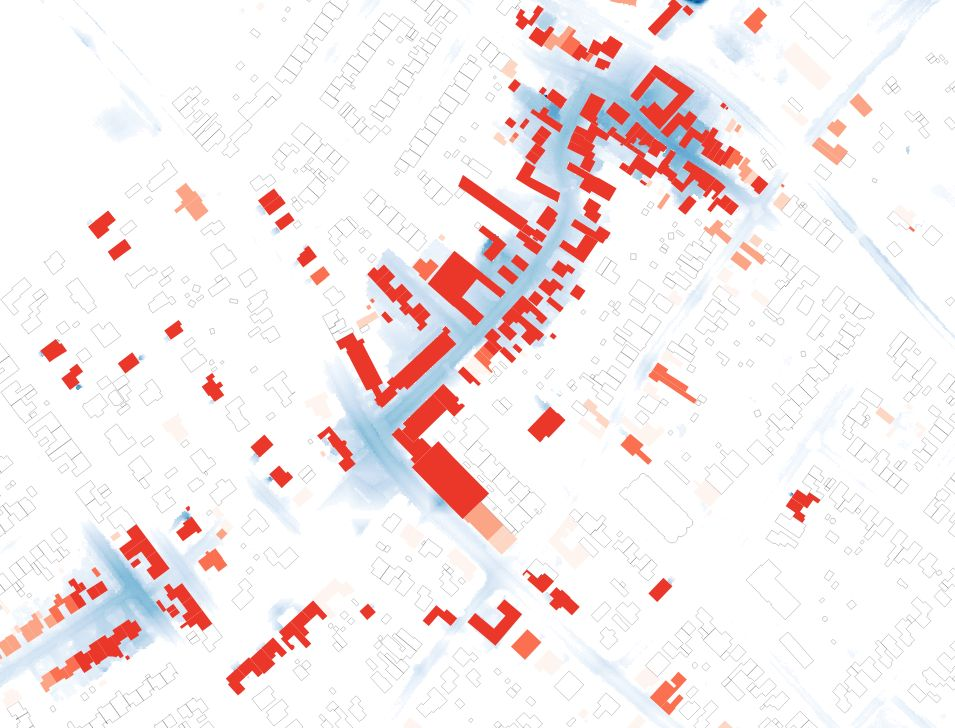
The process takes simulation results (scenario data) and building vector data as inputs, then determines flood impact for each building.
The Input of This Process
Scenario
A scenario file containing simulated water level data from previous flood simulation processes. This provides the time series water levels needed to assess flood impact on buildings.
Buildings Vector File
A vector file containing building footprints with the following requirements:
Supported formats: Shapefile, GeoJSON, or other OGR-compatible formats
Must contain single polygon geometries representing individual buildings
Must have a defined coordinate reference system (CRS)
Must contain only a single layer
Calculation Method
Basic Method (DGBC): Provides general flood risk assessment without considering building floor levels. Every building is buffered with 2 meters. Based on water depths around the buildings, buildings are classified as follows:
Water depth around the building |
Classification |
Description |
|---|---|---|
0m |
Class 0 |
No Flood Risk |
0-0.1 m |
Class 1 |
Very Low Risk |
0.1-0.15 m |
Class 2 |
Low Risk |
0.15-0.2 m |
Class 3 |
Moderate Risk |
0.2-0.3 m |
Class 4 |
High Risk |
The Output of This Process
Flood Risk Results
A vector file (.gpkg) containing the original building footprints enhanced with flood risk analysis results. Each building polygon includes calculated flood risk metrics based on the simulation data and selected calculation method.
Technical Documentation
Building Vector Requirements
The buildings vector file must meet specific criteria:
Single layer containing building footprint polygons
Defined coordinate reference system with appropriate projection
Single polygon geometries only (no multi-polygons or other geometry types)
Flood Risk Calculation
The process analyzes simulation results against building locations to determine:
Which buildings are affected by flooding
Flood depth at building locations
Risk assessment based on water levels and building characteristics
The calculation considers the temporal aspects of flooding from the scenario data to provide comprehensive flood impact analysis for each building in the dataset
Calculate drainage pattern
Extract the main overland drainage routes from a digital elevation model. The drainage pattern gives immediate, visual insight in the hydrological behaviour of your study area. Each streamline also contains a list of attributes such as the Strahler order and the distance to outlet, that can be used for further analysis.
A minimum catchment area [%] can be specified as a percentage of the DEM. A smaller number will result in more streamlines being returned by the algorithm. With a larger number, only the streamlines draining a larger area will be returned.
For a high-detail result, set the minimum catchment area to a small percentage, e.g. 0.1%. If you only want to see the most important drainage pathways, choose a larger percentage, e.g. 10%, the default. How does this work? Using 10%, drainage paths that drain at least 10% of the valid DEM area will be shown, while drainage paths draining a smaller contributing area will not be shown.
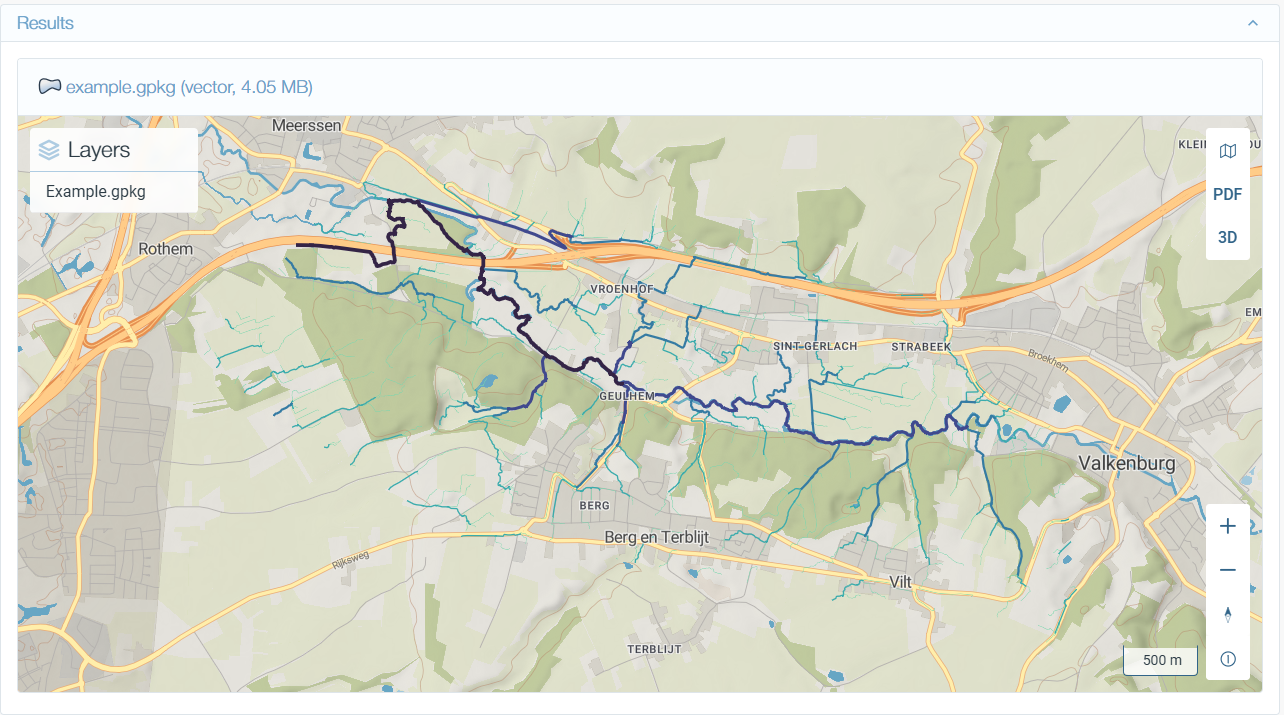
The Input of This Process
Digital elevation model, a raster file containing elevation data.
Minimum catchment area, Defines the minimum size of the contributing area as a percentage of the total DEM area for each streamline. Streamlines with contributing areas below this value will not be included in the result.
The Output of This Process
The output is a vector layer of streamlines. The vector has attributes:
Technical Documentation
This analysis tool chains a number of algorithms from Whitebox Geospatial:
Breach depressions least cost
Fill depressions
D8 pointer
D8 flow accumulation
Extract streams
Raster streams to vector
Vector stream network analysis
The result is copied to a geopackage layer with easier to understand field names. Gaussian smoothing is applied to the lines. The smoothing does not affect the first and last vertex of each line, i.e. topology is preserved.
The output geopackage has the following columns
Column (renamed) |
Type |
Description |
|---|---|---|
total_upstream_channel_length |
Length (m) |
Total length of all stream channels upstream of this link. Used as a proxy for upstream drainage area. |
max_upstream_distance |
Distance (m) |
Maximum flow-path distance from this link to the most distant upstream channel head (longest upstream path). |
outlet_id |
Integer ID |
Identifies which outlet/watershed this link belongs to. All links draining to the same outlet share this value. |
horton_order |
Stream order |
At each confluence, the dominant upstream branch inherits the current order all the way to its headwater. Non-dominant branches restart from order 1. |
strahler_order |
Stream order |
Headwaters get number 1. Order increases by 1 when two equal-order streams join. |
shreve_magnitude |
Magnitude |
Headwaters get number 1. At each confluence, magnitudes sum. A link’s value equals the total number of headwater sources upstream of it. |
hack_order |
Stream order |
The main stem gets number 1. Direct tributaries get number 2, tributaries to those get number 3, and so on. |
distance_to_outlet |
Distance (m) |
Distance along the stream network from this link to the watershed outlet/mouth. |
nr_downstream_nodes |
Count |
Number of downstream confluence nodes between this link and the outlet. |
is_outlet |
Boolean (0/1) |
Whether this link is the most downstream segment draining to the watershed outlet. |
downstream_link_id |
Integer ID |
The immediately downstream stream link. -1/NoData for outlet links. |
is_main_stream |
Boolean (0/1) |
Whether this link is part of the main stem (the dominant path from headwater to outlet). |
tributary_id |
Integer ID |
Unique identifier per tributary branch. All links belonging to the same tributary share this value. |
Calculate floor levels
Calculate floor levels for individual buildings based on their surrounding elevation data. This process is used in flood risk assessments to accurately determine which buildings may be exposed to flooding. It combines building footprint data with a digital elevation model (DEM) to compute representative ground surface elevations around each building.
The Input of This Process
Digital Elevation Model (DEM), an elevation raster (GeoTIFF), can be extracted from dataset from the ‘elevation’ category in the catalogue. Any buildings outside the DEM extent will not receive a floor level.
Buildings Vector layer, a polygon vector layer containing building footprints (e.g., dataset extract from the ‘building’ category in the catalogue).
Buffer Distance (default: 1 meter), radius around each building footprint used to sample elevation values. Standard methodology uses 1 meter.
Percentile Statistic (default: 75), statistical percentile (0-100) to compute floor level from sampled elevations.
The Output of This Process
Buildings vector with floor level, a GeoPackage file with the original building geometries and an additional
floor_levelcolumn containing ground surface elevations around each building.
Technical Documentation
For each building, the process performs the following steps:
Creates a buffer zone around the building footprint at the specified distance (default: 1 meter)
Extracts all elevation values from the DEM that fall within the buffer zone
Calculates the specified percentile (default: p75) of the sampled elevation values
Assigns the computed percentile value as the
floor_levelfor that building
For specialized applications, the buffer distance and percentile can be modified:
Increasing the buffer distance captures a larger neighborhood around the building, useful for areas with coarser DEM resolution. Decreasing the buffer provides a tighter estimate closer to the building footprint.
Using p100 (maximum) provides the highest elevation in the buffer, as used in the Lizard DGBC method. Using lower percentiles (e.g., p50) produces lower floor level estimates.
Calculate road accessibility
Calculate the accessibility of roads after a flood event. Roads are classified as Accessible when there is little to no flooding (e.g. less than 10 cm), Inaccessible when a deep inundated area has to be passed (e.g. more than 30 cm), or Limited accessibility in between these values.
It is recommended to use a roads dataset that has separate lines from junction to junction, the line being on the centerline of the road.
The Input of This Process
Roads, a vector layer containing the centrelines of the roads to be analysed. Each feature should represent a single road segment (junction to junction). Long segments will be split automatically according to Maximum road length.
Water depth, a raster file containing water depths in metres, in a projected (metric) coordinate system.
Maximum passable depth [meters] (default 0.1). Roads with a 90th-percentile water depth at or below this value are classified as Accessible.
Impassable depth threshold [meters] (default 0.3). Roads with a 90th-percentile water depth at or above this value are classified as Inaccessible. Roads in between are classified as Limited accessibility.
Maximum road length [meters] (default 200). Road segments longer than this value are split into shorter pieces before analysis to prevent memory issues.
The Output of This Process
The output is a vector layer of roads (lines), with the accessibility class and the statistics that were used for the analysis.
The accessibility is stored in the output dataset (column “accessibility”) as a numeric value:
1: full accessibility
0.5: limited accessibility
0: no accessibility
Technical Documentation
The algorithm works as follows:
Long roads are cut into segments of ‘Maximum road length’.
Roads are buffered by 1 meter on both sides (half a 2-meter road width, with round endcap style).
Statistics (minimum, several percentiles, maximum, active pixel count) are sampled from the water depth raster for each buffered road line. Note that the dry pixels (water depth = 0) are not included in the calculation of the percentiles.
The percentage of wet area is calculated as the surface of the active pixels (pixels with water depth > 0) relative to the total area of the buffered road.
The road accessibility is determined using the 90th percentile water depth (p90). First, roads with less than 5% wet area are automatically classified as Accessible. For roads with 5% or more wet area:
If p90 ≤ 0.1 m (maximum passable depth): Accessible
If 0.1 m < p90 < 0.3 m (impassable threshold): Limited accessibility
If p90 ≥ 0.3 m: Inaccessible
The results will be written to the fields “min”, “p10”, “p25”, “p50”, “p75”, “p90”, “max”, “percentage_wet”, and “accessibility”. If a field with this name already exists, values will be overwritten.
Calculate storage curves
Calculate storage curves for areas of interest based on a HCC schematisation. A storage curve describes the relationship between water level and stored volume for a given area. This is useful for understanding the capacity of sewerage systems and determining how much water can be stored at different water levels within each polygon.
The process uses the schematisation (and optionally its associated DEM) to generate a computational grid, identifies the relevant sewerage nodes (pipes, weirs, orifices) within each polygon of the study area, and computes a cumulative volume for a range of water levels.
The Input of This Process
Vector layer, a polygon vector layer containing the areas of interest for which to compute storage curves.
Schematisation, an HCC schematisation containing the sewerage network definition.
Minimum water level (meters), optional. The lowest water level at which to start computing volumes. When not set, the minimum bottom level of the relevant nodes is used.
Maximum water level (meters), optional. The highest water level at which to stop computing volumes. When not set, the maximum bottom level of the relevant nodes (plus a margin) is used.
Interval (meters), the water level step size between computed points on the storage curve. Default:
0.5 m.
The Output of This Process
Storage curves GeoPackage, a GeoPackage containing the original study area features with storage curves stored as a related table (using the GeoPackage Related Tables Extension). Each feature is linked to a series of (water level, volume) pairs that together form the storage curve for that area.
Technical Documentation
The process performs the following steps:
Downloads the study area vector layer and schematisation (with optional DEM).
Generates a computational grid (
gridadmin.h5) from the schematisation usingthreedigrid-builder.For each polygon in the study area, identifies all sewerage nodes (pipes, weirs, orifices with
sewerage=1) whose coordinates fall within the polygon.Generates hydraulic tables (
tables.h5) usingthreedi-tables, which contain pre-computed volume and surface area increments per node.For each polygon, iterates over the specified water level range and sums the cumulative volume across all relevant nodes at each water level.
Writes the result as a GeoPackage with the Related Tables Extension (RTE), linking each feature to its storage curve data.
Compute elevation difference
This process calculates the difference between two elevation rasters.
It takes a reference raster and a raster to compare, computes compare - reference, and writes the overlapping result as a GeoTIFF raster.
This process is useful for quantifying terrain or model elevation changes between two datasets on the same grid.
The Input of This Process
Elevation reference raster, the baseline elevation raster.
Elevation raster to compare, the elevation raster that is compared against the baseline.
The Output of This Process
Elevation difference raster, a raster showing the per-pixel elevation difference for the overlapping area of the inputs.
Technical Documentation
Requirements
Both rasters must use the same pixel size.
Both rasters must use the same pixel tilt.
Both rasters must use the same CRS.
Calculation Method
The process computes compare - reference in blocks to limit memory usage.
If the rasters do not share the same extent, only the overlapping extent is processed.
Input nodata values are treated as 0, and the output nodata value is set to 0.
Compute land use difference
This process compares two land use rasters and shows where a selected land use category has increased or decreased between the reference and the comparison raster.
This process is useful for detecting land use transitions between two time periods. For example, identifying where agricultural land has been converted to residential or nature areas.
The Input of This Process
Land use reference raster, the baseline land use raster (e.g. an older year).
Land use raster to compare, the land use raster that is compared against the baseline (e.g. a more recent year).
Land use category, the category to analyse for change (Agricultural, Living, Industry, Nature, Water, or Paved).
The Output of This Process
The output directory contains three rasters:
land_use_change.tif, a raster showing where the selected category has changed:0: unchanged (used as nodata, rendered as transparent)1: category decreased (present in reference, absent in comparison)2: category increased (absent in reference, present in comparison)
reference_grouped.tif, the reference raster reclassified into the six land use categories.compare_grouped.tif, the comparison raster reclassified into the six land use categories.
Technical Documentation
Land use categories
Raw pixel values from the source land use map (based on BAG, BGT, TOP10NL, and BRP) are grouped into six categories: Agricultural (1), Living (2), Industry (3), Nature (4), Water (5), and Paved (6). Unknown values are treated as Other / no data (0).
Requirements
Both rasters must use the same pixel size.
Both rasters must use the same pixel tilt.
Both rasters must use the same CRS.
Calculation method
Processing is done in blocks to limit memory usage.
If the rasters do not share the same extent, only the overlapping area is processed.
Input nodata values are treated as 0 (no land use), and the output nodata value is 0.
Compute Max Water Depth
This process calculates the maximum water depth raster from a Rana HCC scenario file. It takes a scenario archive as input, extracts the required simulation files, computes the maximum water depth over time, and outputs a raster file with the result.
This process is useful for identifying the highest flood depths reached during a simulation, helping you assess flood impact and support risk analysis.
The Input of This Process
HCC Scenario file, a Rana scenario archive containing simulation results.
The Output of This Process
Max water depth raster, a raster showing per pixel the maximum water depth reached during the simulation. Higher values indicate deeper inundation.
Technical Documentation
Requirements
The scenario archive must contain a GridAdmin file (
.h5).The scenario archive must contain a results file (
.nc).The scenario archive must contain a DEM file (
.tif).
Calculation Method
The process computes maximum water depth using HCC depth calculation on the scenario input files.
Data Handling
The scenario archive is downloaded and extracted before processing.
The result is written as a GeoTIFF raster (
max_waterdepth.tif).
Compute water depth difference
This process calculates the difference in water depth between two raster files representing water depth data. It takes a reference water depth raster and a comparison raster as inputs, computes the difference (comparison minus reference) for their overlapping area, and outputs a new raster file with the result.
This process is useful for analyzing changes in water depth over time or between different scenarios, helping you identify areas where water levels have increased or decreased.
The Input of This Process
Water depth reference raster: The baseline water depth raster for comparison.
Water depth raster to compare The water depth raster to compare against the reference.
The Output of This Process
Water depth difference raster: A raster showing the calculated difference in water depth between the two input rasters. Positive values indicate areas where water depth increased, while negative values indicate areas where water depth decreased.
Technical Documentation
Requirements
Both input rasters must have the same pixel size and coordinate reference system
Rasters should have overlapping geographic areas for meaningful comparison
Calculation Method
The process computes the difference as: comparison raster - reference raster
Data Handling
Areas with no data are treated as zero water depth
If rasters have different extents, only the overlapping area is processed
Create 2D Flood Model
Create a flood model for your study area, ready for use in assessment of flooding due to intense rainfall (pluvial flooding). This Rana model is also a reliable foundation for further analyses: integrated urban drainage assessments, coastal and/or fluvial flooding studies, and more. Simply open it in the Rana Desktop Client to have the full range of expert modelling options at your fingertips.
The Input of This Process
Study area, the study area defines the physical boundaries for the model. Output of the ‘Define study area’ process is guaranteed to be a valid input.
Model schematisation name, this name will determine how the model schematisation is saved.
Elevation raster, select a dataset from the Catalog or your own file.
Infiltration raster (optional), select a dataset from the Catalog or your own file, or leave empty. If left empty, a default infiltration raster will be derived.
Friction raster (optional), select a dataset from the Catalog or your own file, or leave empty. If left empty, a default friction raster will be derived.
Add boundary storage zone (default: True), add a 50m wide and deep boundary storage zone around the project area to ensure realistic water flow at the edges.
The Output of This Process
The output is a 2D hydrodynamic model that allows you to simulate rainfall, infiltration, runoff, overland flow, ponding and flooding. This output becomes the basis for rainfall and flow analysis simulations in follow-up processes.
Technical Documentation
Study area requirements
Outputs of the process Define study area is guaranteed to be a valid input for this process. If you use another file as input, it has to meet these requirements:
It contains a single layer with a single polygon in it.
It has a projected coordinate reference system, with meters as unit.
The polygon is within the Netherlands.
Model schematisation
The model is configured as a pure 2D rainfall-driven model with 1D flow disabled, 2D flow and 2D rain are enabled. Friction is modelled using the Manning equation, either with a constant coefficient of 0.03 or a friction raster if one was provided. The minimum cell size is calculated automatically from the study area to target a maximum of 50,000 computation cells. A buffer of 50 meters will be added to the study area in case selected. DEM pixels in this buffer will be given a value of 50 m below the lowest value in the DEM to ensure that water can flow out of the study area, into this buffer. This ensures a realistic water flow in the study area and prevents artificial flooding at the edges of your study area.
Expert level technical settings are visible in the table below.
Setting |
Value |
Description |
|---|---|---|
Friction type |
Manning (2) |
Friction method used in the simulation. |
Friction coefficient |
0.03 |
Constant friction value, used when no friction raster is provided. |
Friction coefficient file |
friction.tif |
Used when a friction raster is provided. |
Minimum cell size |
Calculated |
Derived from the study area size, targeting a maximum of 50,000 cells. |
1D flow |
Disabled |
|
2D flow |
Enabled |
|
2D rain |
Enabled |
Time step settings
Setting |
Value |
|---|---|
Computation time step |
30 s |
Output time step |
300 s (5 min) |
Minimum time step |
0.01 s |
Time step stretch |
Disabled |
Numerical settings
Setting |
Value |
|---|---|
Friction shallow water depth correction |
3 |
Water level gradient limiter 2D |
0 |
Slope cross-sectional area limiter 2D |
3 |
Slope friction limiter 2D |
1 |
Slope thin water layer limiter |
0.1 |
Nested Newton |
Disabled |
Max degree Gauss-Seidel |
5 |
Setting |
Value |
|---|---|
Initial water level |
-99.0 m |
Simple infiltration
Only added when an infiltration raster is provided. Implemented as described in the Simple Infiltration documentation.
Aggregate settings
Aggregate settings are required for the Water Balance Tool and are implemented by adding these settings to the schematisation.
Create 3D water level data
Convert simulation results to a water level layer in a format that can be used in 3D platforms (OGC 3D Tiles).
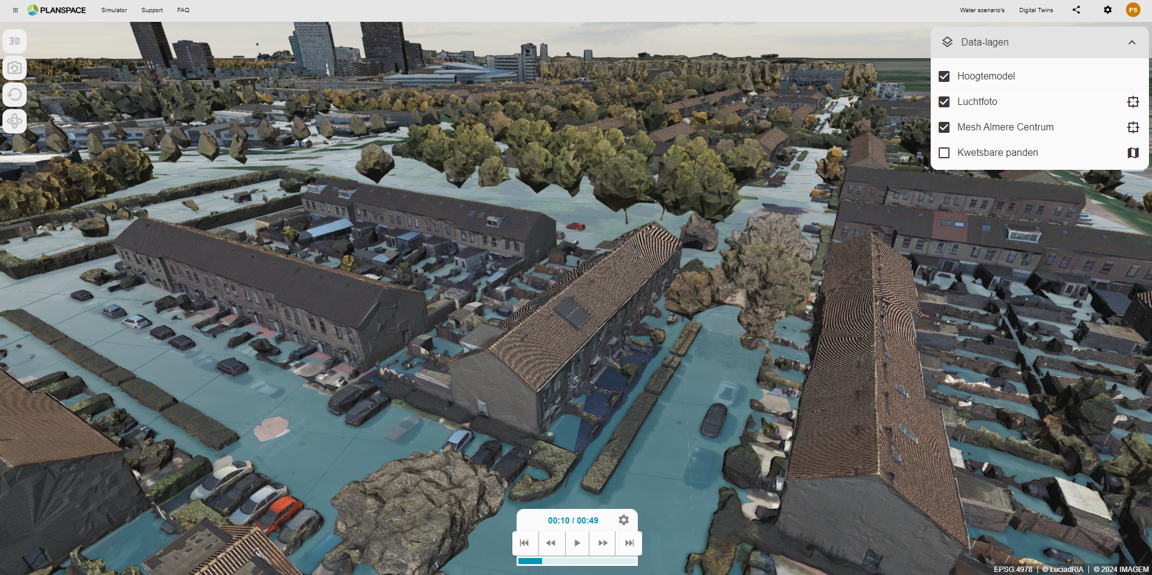
Note
The image above shows 3D visualisation in 3rd party software. Rana only provides the OGC 3D Tiles, other software is required to be able to visualise them.
Visualizing water levels in 3D can help stakeholders make better decisions regarding flood risks, infrastructure planning, and water management strategies. OGC 3D tiles make this possible. The format efficiently handles large datasets, allowing users to view and interact with 3D models without performance issues.
The Input of This Process
Scenario, a simulation result from which the water level data will be read. Use for example the ‘Simulate rainfall’ process to create this file.
Interval (in minutes), time gap between each frame (or snapshot) of water levels in the 3D tiles. A shorter interval results in smoother animations but generates more data and larger files. Default: 60 minutes.
The Output of This Process
An OGC 3D Tiles file with water level surfaces. This file can be viewed in GIS platforms or web viewers to visualize the simulation results.
Create Basic Hydrodata
Add essential hydrological datasets to your project.
The process extracts elevation, soil, and land cover raster datasets for your study area and adds them to your project. These layers allow you to quickly conduct a hydrological scan of your study area.
Select your study area and the datasets you need, and the outputs will be automatically aligned to the correct spatial projection for seamless integration into your project.
The Input of This Process
Study area, the study area defines the geographic extent for data extraction.
Elevation Dataset (optional), select an item from the elevation category in the Catalog.
Soil Dataset (optional), select an item from the soil category in the Catalog.
Land use Dataset (optional), select an item from the land use category in the Catalog.
Land Cover Dataset (optional), select an item from the land cover category in the Catalog.
Cell size (in meters) (default: 0.5), each grid cell represents a square on the ground. Minimum: 0.5 m.
The Output of This Process
The outputs are raster files that cover your whole study area.
Digital elevation model (DEM)
Each pixel represents the elevation in meters above mean sea level (m MSL) at that location. A DEM is crucial for hydrological analyses like water flow, slope calculation, and flood modelling.
Soil type
Each pixel represents the soil type for that location. This is important for understanding water infiltration and retention in hydrology studies.
The soil types are stored as whole numbers; see source data for an overview of which number corresponds to which soil type.
Land use (functional)
Each pixel represents a land use class (e.g., urban, forest, agricultural). This classification by function helps to understand what is going on in your study area. It can also be used to estimate the damage (costs) of flooding: e.g. cropland may have a different damage curve than grassland.
The land use types are stored as whole numbers; see source data for an overview of which number corresponds to which land use category.
Land cover (physical appearance)
Each pixel represents the physical appearance of the land (e.g. paved or unpaved), which affects hydrological processes like runoff, evaporation, and storage.
The land cover types are stored as whole numbers; see source data for an overview of which number corresponds to which land cover category.
Technical Documentation
Source Data
Digital elevation model
Digital terrain model (DTM) of the Netherlands, based on Algemeen hoogtebestand Nederland 4, preprocessed for hydrological analysis. At the location of buildings (according to the Basisregistratie Adressen en Gebouwen), the elevation is set to the estimated floor level, calculated as the 75th percentile of all elevation values directly adjacent to the building.
At other locations where the original dataset had gaps due to water bodies, parked cars, dense vegetation, etc., values have been spatially interpolated.
Soil type
This dataset is based on the Bodemfysische eenhedenkaart 2012 (BOFEK). Soil types are classified according to the Policy Analysis for the Water management of the Netherlands (PAWN) classification; see the table below. The dataset is spatially interpolated to fill nodata gaps in the original dataset, e.g. in urban areas.
# |
Soil type |
|---|---|
1 |
Veengrond met veraarde bovengrond |
2 |
Veengrond met veraarde bovengrond, zand |
3 |
Veengrond met kleidek |
4 |
Veengrond met kleidek op zand |
5 |
Veengrond met zanddek op zand |
6 |
Veengrond op ongerijpte klei |
7 |
Stuifzand |
8 |
Podzol (Leemarm, fijn zand) |
9 |
Podzol (zwak lemig, fijn zand) |
10 |
Podzol (zwak lemig, fijn zand op grof zand) |
11 |
Podzol (lemig keileem) |
12 |
Enkeerd (zwak lemig, fijn zand) |
13 |
Beekeerd (lemig fijn zand) |
14 |
Podzol (grof zand) |
15 |
Zavel |
16 |
Lichte klei |
17 |
Zware klei |
18 |
Klei op veen |
19 |
Klei op zand |
20 |
Klei op grof zand |
21 |
Leem |
Land use (functional)
This dataset is a contiguous raster on a 0.5 m resolution for the entire Netherlands, that represents functional land use.
Both land cover and land use are constructed from a combination of publicly available Dutch land use datasets: Basisregistratie Adressen en Gebouwen, Basisregistratie Grootschalige Topografie (BGT), Basisregistratie Topografie (BRT): TOP10NL, and Basisregistratie Gewaspercelen (BRP).
The classes used in this dataset are given below.
# |
Land use |
|---|---|
1 |
Veengrond met veraarde bovengrond |
2 |
woonfunctie |
3 |
celfunctie |
4 |
industriefunctie |
5 |
kantoorfunctie |
6 |
winkelfunctie |
7 |
kas |
8 |
logiesfunctie |
9 |
bijeenkomstfunctie |
10 |
sportfunctie |
11 |
onderwijsfunctie |
12 |
gezondheidszorgfunctie |
13 |
overige gebruiksfunctie |
14 |
niet ingevuld |
15 |
woongebied |
16 |
bedrijventerrein |
17 |
dagrecreatief terrein |
18 |
verblijfsrecreatief terrein |
19 |
sportterrein |
20 |
begraafplaats |
21 |
volkstuinen |
22 |
glastuinbouw |
24 |
overig |
25 |
snelweg |
26 |
regionale_weg |
27 |
verkeerseiland |
28 |
lokale_weg |
29 |
overige wegdelen |
30 |
vliegveld |
31 |
spoorbaan |
32 |
transformatorstation |
33 |
opslagtank |
34 |
bezinkbak |
35 |
bassins |
40 |
groenvoorziening |
41 |
overig gras/groen |
42 |
gras |
43 |
bos / natuur |
44 |
berm |
45 |
spoorberm |
50 |
water |
51 |
binnenwater |
52 |
buitenwater |
55 |
aardbeien_op_stelling |
56 |
aardbeien_open_grond |
57 |
aardperen |
58 |
agrarisch gras en veevoeders |
59 |
akkerbouw |
60 |
andijvie |
61 |
appelen |
62 |
asperges |
63 |
augurk |
64 |
blasrammenas |
65 |
blauwebessen |
66 |
bloembollen |
67 |
bloembollen en sierteelt |
68 |
bloemkool |
69 |
boerenkool |
70 |
boom en heesterkweek |
71 |
bos en haagplanten |
72 |
bospeen |
73 |
braak |
74 |
broccoli |
75 |
bruinebonen |
76 |
buxus |
77 |
chinesekool |
78 |
cichorei |
79 |
consumptieaardappelen |
80 |
courgette |
81 |
cranberry |
82 |
engels raaigras |
83 |
erwten |
84 |
frambozen |
85 |
fruitteelt |
86 |
gerst |
87 |
granen |
88 |
grasland natuurlijk |
89 |
graszoden |
90 |
groente in open grond |
91 |
haver |
92 |
hennep |
93 |
ijsbergsla |
94 |
kapucijners |
95 |
kersen |
96 |
kersen zuur |
97 |
kerstbomen |
98 |
klaver |
99 |
knoflook |
100 |
knolselderij |
101 |
knolvenkel |
102 |
komkommer |
103 |
koolraap |
104 |
koolrabi |
105 |
koolzaad |
106 |
kruiden |
107 |
laanbomen |
108 |
luzerne |
109 |
mais corncob |
110 |
mais energie |
111 |
mais korrel |
112 |
mais snij |
113 |
mais suiker |
114 |
miscanthus |
115 |
natuur |
116 |
notenbomen |
117 |
paksoi |
118 |
pastinaak |
119 |
peren |
120 |
peulen |
121 |
pompoen |
122 |
pootaardappelen |
123 |
prei |
124 |
pronkbonen |
125 |
pruimen |
126 |
rabarber |
127 |
radijs |
128 |
rietzwenkgras |
129 |
rode bieten |
130 |
rodebessen |
131 |
rodekool |
132 |
rogge |
133 |
rozen |
134 |
schorseneren |
135 |
selderij |
136 |
sierconiferen |
137 |
sierheesters en klimplanten |
138 |
sla |
139 |
sojabonen |
140 |
sperziebonen |
141 |
spinazie |
142 |
spitskool |
143 |
sportveld |
144 |
spruitjes |
145 |
suikerbieten |
146 |
tarwe |
147 |
trek en besheesters |
148 |
triticale |
149 |
tuinbonen |
150 |
uien |
151 |
valeriaan |
152 |
vaste planten |
153 |
vlas |
154 |
voederbieten |
155 |
waspeen |
156 |
water |
157 |
weidehooi |
158 |
wijndruiven |
159 |
winterpeen |
160 |
witlof |
161 |
wittekool |
162 |
wortelpeterselie |
163 |
zetmeelaardappelen |
164 |
zwartebessen |
165 |
voetgangersgebied |
166 |
fietspad |
167 |
duin |
167 |
akkerland |
167 |
fruitkwekerij |
168 |
ov baan |
Land cover (physical appearance)
# |
Land cover |
|---|---|
1 |
Veengrond met veraarde bovengrond |
1 |
dak |
2 |
zand |
3 |
half verhard |
4 |
erf |
5 |
gesloten verharding |
6 |
onverhard |
7 |
open verharding |
8 |
groenvoorziening |
9 |
naaldbos |
10 |
gras |
11 |
grasland |
12 |
struiken |
13 |
natuurterrein |
14 |
boomteelt |
15 |
duin |
16 |
heide |
17 |
bouwland |
18 |
houtwal |
19 |
loofbos |
20 |
rietland |
21 |
fruitteelt |
22 |
gemengd bos |
23 |
braakland |
26 |
moeras |
27 |
kwelder |
28 |
waterberm |
29 |
water |
30 |
overige |
254 |
water |
Create friction raster
Create a friction raster from a land cover map. The friction value represents the Manning’s roughness coefficient for surface water flow, derived from the land cover class.
The Input of This Process
Land cover raster, select a land cover raster from your files.
The Output of This Process
Friction raster, a GeoTIFF raster with Manning’s roughness coefficients derived from the land cover classes.
Technical Documentation
The classes of the land cover map are translated using the table below to the Manning’s roughness coefficient.
Physical land use input
The input classes of the land cover map are listed below, together with their Manning’s roughness coefficient:
Class ID |
Name |
Manning’s n (s/m^(1/3)) |
|---|---|---|
1 |
Roof |
0.058 |
2 |
Sand |
0.03 |
3 |
Semi-paved |
0.03 |
4 |
Yard |
0.03 |
5 |
Closed pavement |
0.013 |
6 |
Unpaved |
0.03 |
7 |
Open pavement |
0.016 |
8 |
Green roof |
0.03 |
9 |
Trees |
0.058 |
10 |
Grass |
0.03 |
11 |
Agriculture |
0.03 |
12 |
Forest |
0.058 |
13 |
Shrubs |
0.058 |
14 |
Heather |
0.058 |
15 |
Dunes |
0.05 |
16 |
Bare soil |
0.058 |
17 |
Gravel |
0.034 |
18 |
Natural |
0.058 |
19 |
Wetland |
0.058 |
20 |
Floodplain |
0.058 |
21 |
Other natural |
0.058 |
22 |
Other |
0.058 |
23 |
Unknown built |
0.058 |
26 |
Infrastructure |
0.058 |
27 |
Rail |
0.058 |
28 |
Beach |
0.03 |
29 |
Tidal flat |
0.026 |
30 |
River bed |
0.03 |
253 |
Unknown |
0.03 |
254 |
Water |
0.026 |
Create infiltration raster
Create an infiltration rate raster from soil and land use maps. The infiltration rate is retrieved by multiplying the soil infiltration rate with a factor derived from the land use.
The Input of This Process
Soil raster, select a soil raster from your files.
Land cover raster, select a land cover raster from your files.
The Output of This Process
Infiltration raster, a GeoTIFF raster with infiltration rates derived from the soil and land cover classes.
Technical Documentation
Soil map input
The table that maps the soil map to the infiltration rate.
Class ID |
BOFEK Name |
Infiltration Rate (mm/day) |
|---|---|---|
1 |
Peat soil with humified topsoil |
480 |
2 |
Peat soil with humified topsoil, sand |
480 |
3 |
Peat soil with clay cover |
120 |
4 |
Peat soil with clay cover on sand |
480 |
5 |
Peat soil with sand cover on sand |
480 |
6 |
Peat soil on immature clay |
120 |
7 |
Drift sand |
480 |
8 |
Podzol (low in loam, fine sand) |
480 |
9 |
Podzol (slightly loamy, fine sand) |
480 |
10 |
Podzol (slightly loamy, fine sand over coarse sand) |
480 |
11 |
Podzol (loamy boulder clay) |
120 |
12 |
Enkeerd soil (slightly loamy, fine sand) |
120 |
13 |
Beekeerd soil (loamy fine sand) |
120 |
14 |
Podzol (coarse sand) |
480 |
15 |
Loam |
480 |
16 |
Light clay |
120 |
17 |
Heavy clay |
120 |
18 |
Clay over peat |
120 |
19 |
Clay over sand |
120 |
20 |
Clay over coarse sand |
120 |
21 |
Silt / Loess |
120 |
Physical land use input
The input classes of the land use map are listed below, together with their infiltration factor.
Class ID |
Name |
Infiltration Factor |
|---|---|---|
1 |
Roof |
0 |
2 |
Sand |
1 |
3 |
Semi-paved |
0.5 |
4 |
Yard |
0.25 |
5 |
Closed pavement |
0 |
6 |
Unpaved |
1 |
7 |
Open pavement |
0.025 |
8-30 |
Green and natural areas |
1 |
253 |
Unknown |
1 |
254 |
Water |
0 |
Define Study Area
Create a valid study area polygon for your project. It extracts one or more polygons from a layer, merges them into one and (optionally) adds a buffer around it.
The resulting polygon can be used as “study area” input in other processes related to hydrological modelling, data analysis, or visualization.
For your convenience, Rana provides datasets of administrative boundaries that you can choose from. You may also use any other polygon layer from your project.
The Input of This Process
Area, select your study area. You can draw on the map, choose from standard administrative boundaries (e.g. municipalities), or upload a custom polygon file.
Buffer (in meters) (default: 0), add a buffer around the selected area to include features near the borders.
The Output of This Process
A geopackage file with one layer that contains one polygon.
Technical Documentation
If the input data has a coordinate reference system (CRS) with units that are not meters, the output polygon is reprojected to the appropriate UTM zone projection.
If multiple polygons are selected, they will be dissolved into a single polygon. It is required that the input polygons are not disjoint.
Source Data
The municipalities layer is sourced from PDOK, “Bestuurlijke Gebieden 2024”.
Delineate basins
Delineate basins (watersheds) from a digital elevation model. Basins are defined as areas that drain to the same edge pixel. The basins can be used to help you understand the hydrological functioning of your study area, or to subdivide a large area in smaller, hydrologically separate study areas.
The Input of This Process
Digital elevation model, a raster file containing elevation data.
The Output of This Process
The output is a vector layer of basin polygons.
Technical Documentation
This analysis tool chains a number of algorithms from Whitebox Geospatial:
Breach depressions least cost
Fill depressions
D8 pointer
Basins
The result is vectorized and copied to a geopackage layer “basins”. Gaussian smoothing is applied to the polygons. The smoothing preserves topology (creates no gaps or overlaps).
Extract dataset
Import a dataset (for instance a digital elevation model) into your project. Select your study area and the dataset you need, and the output will be automatically aligned to the correct spatial projection for seamless integration into your project.
The Input of This Process
Dataset, select a Catalog item that is to be extracted.
Study area, the study area defines the geographic extent for data extraction.
Resolution (default: “default”), pixel size of the output raster. Use “default” to use the native resolution of the source dataset, or specify a custom resolution in meters.
The Output of This Process
Extracted file, the extracted geospatial file, clipped and aligned to your study area.
Generate D-Hydro Freeboard
Calculates corrected freeboard (drooglegging) values. Combining model outputs with storage node effects, and filters out boezem (lake/buffer water) areas.
The Input of This Process
- Boezem (Lake / Buffer Water)Shapefile / GeoPackage
Boezem (lake/buffer water) polygons to exclude from analysis.
Source: D-Hydro model input or water management area definitions.
Required: Polygon geometry representing water bodies.
- Calculation Points (WITH storage nodes)GeoPackage
Calculation points with water levels from D-Hydro model (WITH storage nodes).
Source: D-Hydro FlowFM output (_his.nc files).
Required columns: ‘t_end’ (water level), geometry (point locations).
- Water Levels WITHOUT Storage NodesCSV
Water levels without storage node effects.
Source: D-Hydro FlowFM output (separate run without storage nodes).
Format: Skip first row (metadata), column ‘Water level - mesh1d_nNodes: mean (m)’.
- Freeboard CSV (WITHOUT storage)CSV
Model freeboard values at calculation points (calculated WITHOUT storage nodes).
Source: D-Hydro FlowFM output (run without storage nodes).
Formula: Good freeboard = freeboard_without_storage + (wl_without_storage - wl_with_storage)
Format: Skip first row (metadata), column ‘Freeboard - mesh1d_nNodes: mean (m)’.
The Output of This Process GeoPackage with corrected freeboard values:
Layer ‘freeboard_winter’: Corrected freeboard (fb_cor = freeboard + waterstand).
Layer ‘freeboard_zomer’: Empty layer (placeholder for future summer calculations).
Points in boezem areas set to -9999 (nodata).
Prepare Digital Elevation From AHN
Extract and process Dutch elevation data (AHN - Actueel Hoogtebestand Nederland) to prepare a digital elevation model with calculated floor levels for buildings in your study area.
This process downloads the specified AHN dataset, fills missing elevation values, calculates floor levels around building footprints, and produces a final elevation raster suitable for hydrological modeling.
The Input of This Process
Elevation The Digital Terrain Model without surface features such as vegetation and structures.
Study Area A polygon vector dataset defining the geographic extent for elevation data extraction. This ensures all processed data corresponds to your specified area of interest.
Resolution (default: “default”) Pixel size of the output raster. Use “default” to use the native resolution of the source dataset, or specify a custom resolution in meters.
Decimal Precision (default: 2) The number of decimal places for rounding interpolated elevation values.
Buildings Vector File A vector file containing building footprints with polygon geometries representing individual buildings. Supported formats include Shapefile, GeoJSON, or other OGR-compatible formats. If your file contains multiple layers, you can specify which layer contains the building footprints.
Buffer Distance (default: 1 meter) Radius around each building footprint used to sample elevation values for floor level calculation.
Percentile Statistic (default: 75) The statistical percentile (0-100) used to determine floor level. For example, 75 means the floor level is set such that 75% of the buffered area is below this elevation.
The Output of This Process
A GeoTIFF raster file containing the digital elevation model with integrated floor level data for buildings, clipped to your study area boundaries. The floor level represents the estimated ground surface elevation around each building, which is essential for accurate flood risk assessment and water flow modeling.
Technical Documentation
The process performs several sequential steps:
Data Validation: Validates that the study area polygon and buildings vector file are properly formatted
AHN Extraction: Downloads and extracts the specified AHN dataset clipped to study area boundaries
Data Interpolation: Fills missing or null elevation values using interpolation techniques to create a continuous DEM
Floor Level Calculation: For each building, buffers the footprint, samples elevation values within the buffer, and computes the percentile-based floor level
Rasterization: Converts calculated floor level values back onto the DEM raster
Final Processing: Clips the result to study area boundaries and optimizes file size
The elevation raster uses a metric coordinate reference system, which is validated during processing. All interpolated values are rounded to the specified decimal precision for consistent data.
Simulate Rainfall
This process allows you to simulate constant rainfall scenarios for one model in your project. The simulation starts with a rain period where a constant rain intensity is applied across the entire model. After the rain period ends, the simulation continues with a dry period, allowing you to observe water retention, runoff, and drainage behavior. This type of simulation is essential for analyzing how the terrain and landscape respond to sustained rainfall events, helping identify potential flooding risks and evaluating water management strategies.
The Input of This Process
Model, a rana model schematisation, for example created by the ‘Create 2D flood model’ process.
Simulation duration (in minutes), total duration of simulation, covering both rainfall and dry period. Default: 120 minutes.
Rain duration (in minutes), controls how long the simulation applies rainfall. Default: 60 minutes.
Rain intensity (in mm/h), rain intensity directly affects the amount of water entering the model. Default: 80 mm/h.
Processed Simulation Results
Max water depth, in meters relative to the surface (DEM). The exact moment that this max water depth occurs can vary between cells.
A scenario result, that can be readily used in a publication.
Detailed NetCDF files, that can be used for further analysis in the Rana Desktop Client.
Raw Simulation Results
These files can be used for advanced analysis in the Rana Desktop Client. These files contain the water levels, volumes, flow velocities, discharge, and other relevant variables for each output time step of the simulation (e.g. every 5 minutes). For more information, see Rana Documentation.
A model schematisation may have multiple revisions; the Rana model of the latest revision is used in the simulation. A Rana model for the latest revision will be generated if it does not exist yet.
If multiple simulation templates exist for the Rana model, the most recent one will be used.
Simulate rainfall events: constant
This process allows you to simulate a constant rainfall event, used as a stress test in the Netherlands. These events are determined by RIONED.
The Input of This Process
Model, a rana model, for example created by the ‘Create 2D flood model’ process.
Rainfall event, select a historical rainfall event.
Processed Simulation Results
Max water depth, in meters relative to the surface (DEM). The exact moment that this maximum water depth occurs can vary between cells.
A scenario result, that can be readily used in a publication.
Detailed NetCDF files, that can be used for further analysis in the Rana Desktop Client.
Raw Simulation Results
These files can be used for advanced analysis in the Rana Desktop Client. These files contain the water levels, volumes, flow velocities, discharge, and other relevant variables for each output time step of the simulation (for example, every 5 minutes). For more information, see Rana Documentation.
Technical Documentation
A schematisation may have multiple revisions; the Rana model of the latest revision is used in the simulation. A Rana model for the latest revision will be generated if it does not exist yet.
If multiple simulation templates exist for the Rana model, the most recent one will be used.
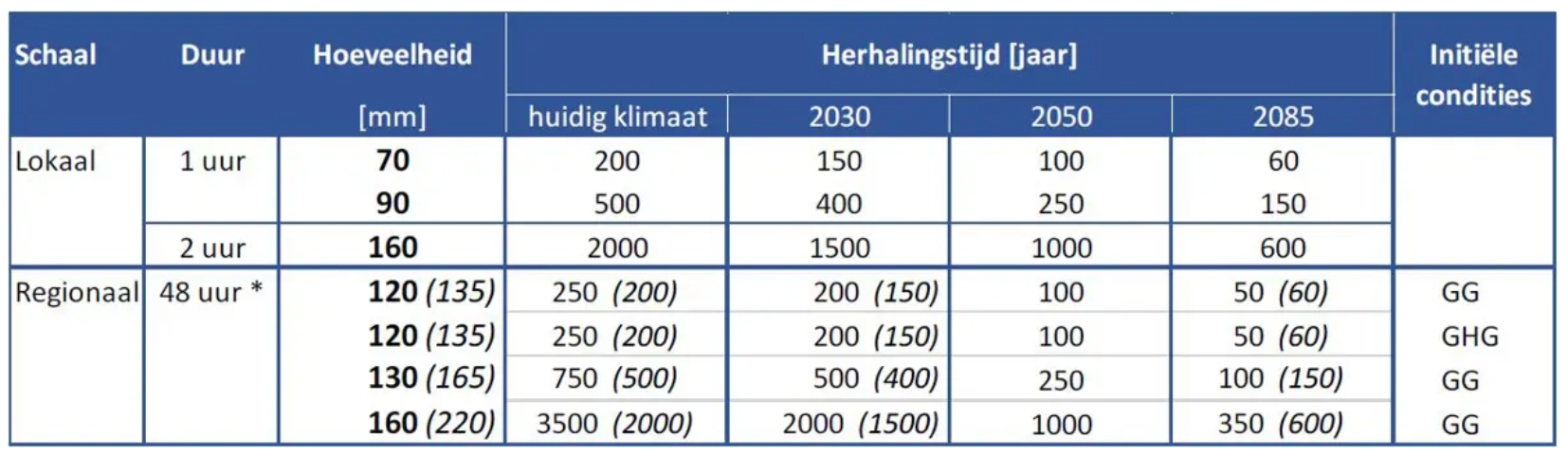
Overview constant rainfall events
Constant rainfall event name |
Total rainfall (mm) |
Rainfall event duration / Time series duration (h) |
Return period (y) |
|---|---|---|---|
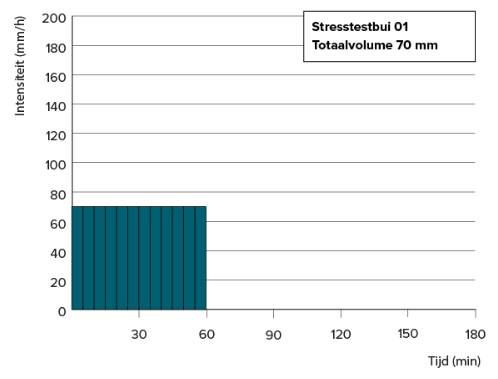
DPRA Event 70 mm |
70 |
1 |
200 |
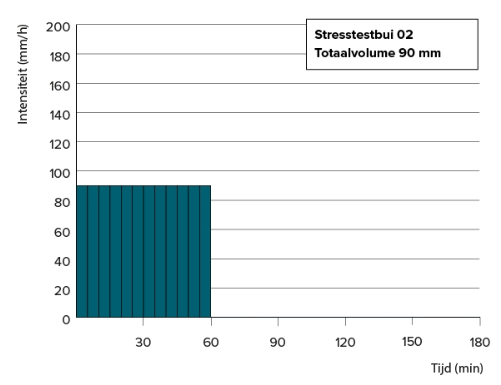
DPRA Event 90 mm |
90 |
1 |
500 |
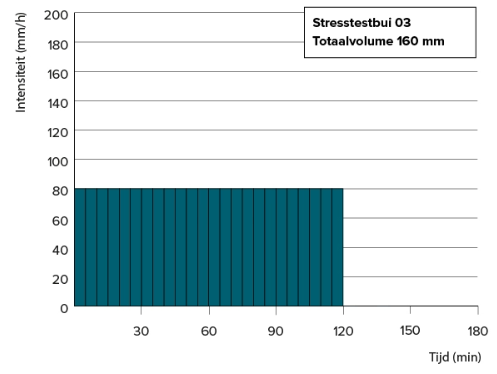
DPRA Event 160 mm |
160 |
2 |
2000 |
DPRA Event 70 mm
70 mm
DPRA Event 90 mm
90 mm
DPRA Event 160 mm
160 mm
Simulate rainfall events: historical
This process allows you to simulate a historic rainfall event for one schematization in your project.
The Input of This Process
Model, a rana model, for example created by the ‘Create 2D flood model’ process.
Rainfall event, select a historical rainfall event.
Processed Simulation Results
Max water depth, in meters relative to the surface (DEM). The exact moment that this maximum water depth occurs can vary between cells.
A scenario result, that can be readily used in a publication.
Detailed NetCDF files, that can be used for further analysis in the Rana Desktop Client.
Raw Simulation Results
These files can be used for advanced analysis in the Rana Desktop Client. These files contain the water levels, volumes, flow velocities, discharge, and other relevant variables for each output time step of the simulation (for example, every 5 minutes). For more information, see Rana Documentation.
Technical Documentation
A schematisation may have multiple revisions; the Rana model of the latest revision is used in the simulation. A Rana model for the latest revision will be generated if it does not exist yet.
If multiple simulation templates exist for the Rana model, the most recent one will be used.
Overview historical rainfall events
Historical rainfall event name |
Total rainfall (mm) |
Rainfall event duration (h) |
Time series duration (h) |
Timestep (min) |
Year measurements |
Return period |
Source |
|---|---|---|---|---|---|---|---|
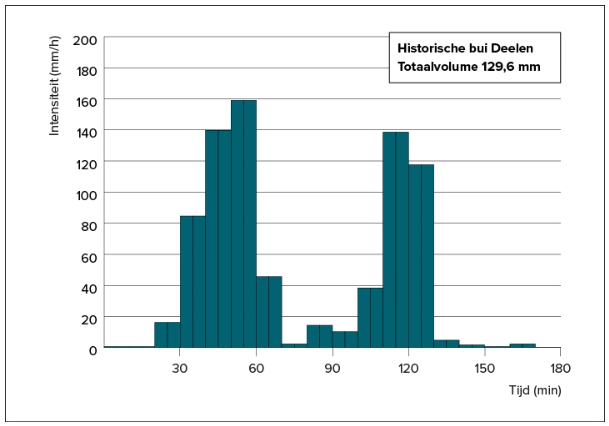
Deelen |
129.6 |
2 hours and 50 minutes |
2 hours and 50 minutes |
5 |
2014 |
T=1000 |
Rioned |
Marknesse |
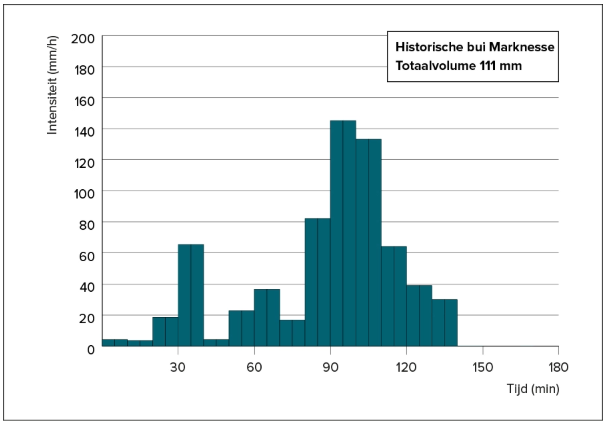
111.0 |
2 hours and 20 minutes |
2 hours and 50 minutes |
5 |
2003 |
T=500 |
Rioned |
Herwijnen |
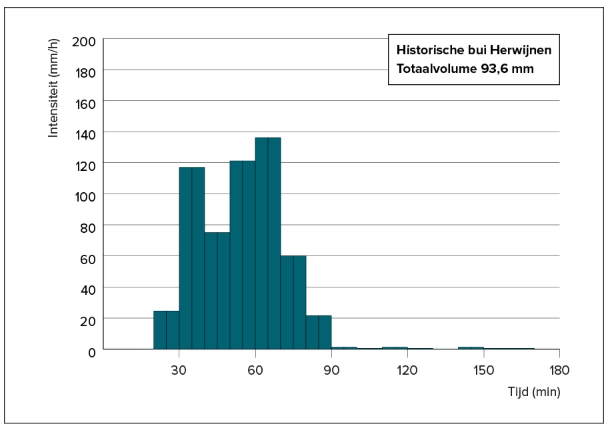
93.6 |
2 hours and 30 minutes |
2 hours and 50 minutes |
5 |
2011 |
T=500 |
Rioned |
Cabauw |
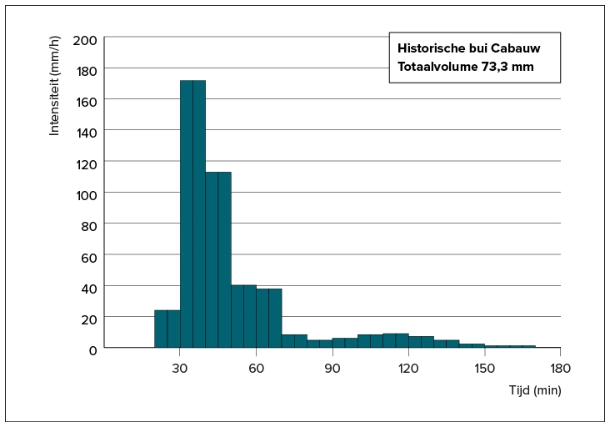
73.3 |
2 hours and 30 minutes |
2 hours and 50 minutes |
5 |
2005 |
T=200 |
Rioned |
Maastricht |
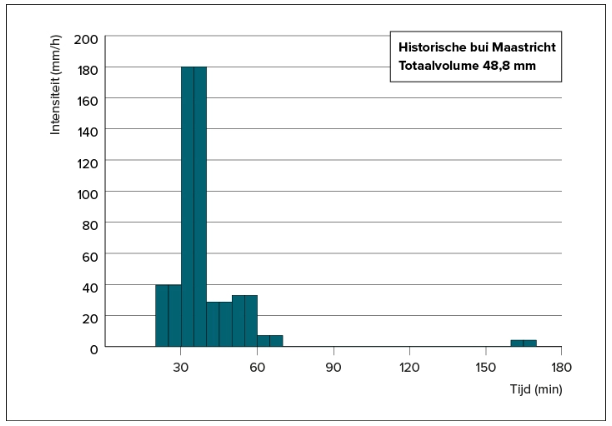
48.8 |
2 hours and 30 minutes |
2 hours and 50 minutes |
5 |
2014 |
T=100 |
Rioned |
De Bilt |
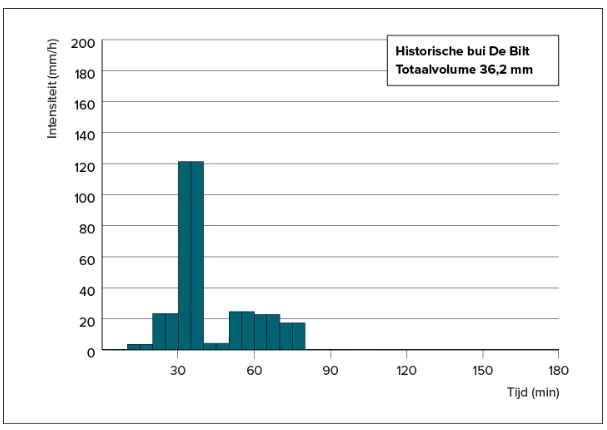
36.2 |
1 hour and 10 minutes |
2 hours and 50 minutes |
5 |
2016 |
T=20 |
Rioned |
Copenhagen |
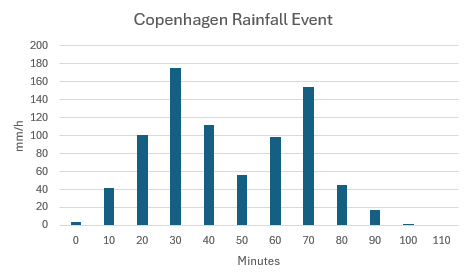
134.5 |
1 hour and 50 minutes |
1 hour and 50 minutes |
10 |
2011 |
T>2000 |
DMI / Arnbjerg-Nielsen et al. |
Limburg |
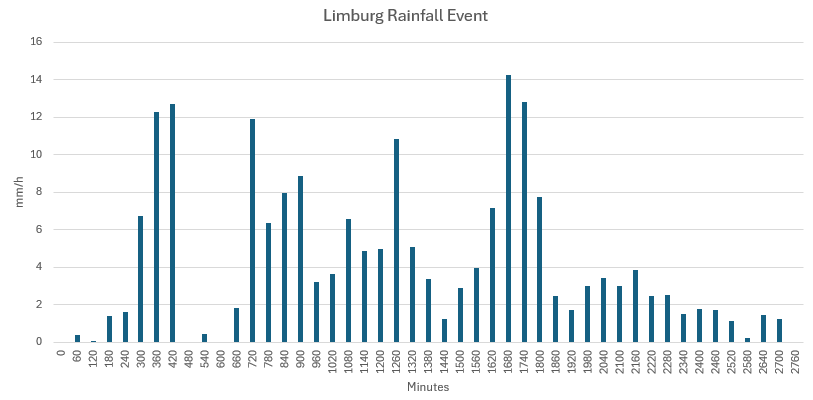
200.4 |
48 hours |
49 hours |
60 |
2021 |
T=1000 |
Stowa |
Details Historical Event Deelen
Details Historical Event Marknesse
Details Historical Event Herwijnen
Details Historical Event Cabauw
Details Historical Event Maastricht
Details Historical Event De Bilt
Details Historical Event Copenhagen
Details Historical Event Limburg
In July 2021, Limburg experienced an extreme rainfall event that led to significant flooding, primarily caused by a storm depression named ‘Bernd.’ This unprecedented rainfall resulted in the Meuse and Geul rivers overflowing, damaging thousands of homes and infrastructure, and causing estimated losses of 350 to 600 million euros. The event was characterized by record-breaking precipitation levels, making it one of the most severe flooding incidents in the region’s history.
The source of the Copenhagen event is from the Danish Institute of Meteorology, and was accessed using their API using the following URL: https://opendataapi.dmi.dk/v2/metObs/collections/observation/items?stationId=05735¶meterId=precip_past10min&datetime=2011-07-02T17:10:00Z/2011-07-02T18:50:00Z&limit=11 (16-1-2026).
The source of the Limburg event can be found here https://klimaatadaptatienederland.nl/hulpmiddelen/overzicht/handreiking-bovenregionale-stresstesten/ when clicking the PDF (17-03-2026).
Simulate rainfall event: standard events NL
Simulate Rainfall Event: Standard Events (Netherlands) This process allows you to simulate a standard rainfall event used in the Netherlands. These are C2100 rainfall events from RIONED for one Rana model in your project.
The Input of This Process
Model, a rana model, for example created by the ‘Create 2D flood model’ process.
Rainfall event, select a C2100 rainfall event.
Processed Simulation Results
Max water depth, in meters relative to the surface (DEM). The exact moment that this maximum water depth occurs can vary between cells.
A scenario result, that can be readily used in a publication.
Detailed NetCDF files, that can be used for further analysis in the Rana Desktop Client.
Raw Simulation Results
These files can be used for advanced analysis in the Rana Desktop Client. These files contain the water levels, volumes, flow velocities, discharge, and other relevant variables for each output time step of the simulation (for example, every 5 minutes). For more information, see Rana Documentation.
Technical Documentation
A schematisation may have multiple revisions; the Rana model of the latest revision is used in the simulation. A Rana model for the latest revision will be generated if it does not exist yet.
If multiple simulation templates exist for the Rana model, the most recent one will be used.
Overview standard rainfall events
Rainfall event name |
Total rainfall (mm) |
Rainfall event duration / time series duration (h) |
Timestep (min) |
Return period (y) |
Location peak (e: early, l: late) |
|---|---|---|---|---|---|
Standard rainfall event 01 |
10.5 |
1 hour and 15 minutes |
5 |
T=0.25 |
e |
Standard rainfall event 02 |
10.5 |
1 hour and 15 minutes |
5 |
T=0.25 |
l |
Standard rainfall event 03 |
14.4 |
1 hour and 15 minutes |
5 |
T=0.5 |
e |
Standard rainfall event 04 |
14.4 |
1 hour and 15 minutes |
5 |
T=0.5 |
l |
Standard rainfall event 05 |
16.8 |
1 hour and 15 minutes |
5 |
T=1 |
e |
Standard rainfall event 06 |
16.8 |
1 hour and 15 minutes |
5 |
T=1 |
l |
Standard rainfall event 07 |
19.8 |
1 hour |
5 |
T=2 |
e |
Standard rainfall event 08 |
19.8 |
1 hour |
5 |
T=2 |
l |
Standard rainfall event 09 |
29.4 |
1 hour |
5 |
T=5 |
e |
Standard rainfall event 10 |
35.7 |
45 minutes |
5 |
T=10 |
e |
Simulate rainfall painter event
This process allows you to simulate a rainfall event using a rainfall event generated by Rainfall Painter for one model in your project. The rainfall is uniformly spread over the model.
The Input of This Process
Model, a rana model schematisation to run the simulation on.
Rainfall file, a CSV export from Rain Canvas Studio with columns
Time (hr)andIntensity (in/hr). The CSV may contain comment lines starting with#and a header line, as produced by Rain Canvas Studio.
Processed Simulation Results
Max water depth, in meters relative to the surface (DEM). The exact moment that this max water depth occurs can vary between cells.
A scenario result, that can be readily used in a publication.
Detailed NetCDF files, that can be used for further analysis in the Rana Desktop Client.
Raw Simulation Results
These files can be used for advanced analysis in the Rana Desktop Client. These files contain the water levels, volumes, flow velocities, discharge, and other relevant variables for each output time step of the simulation (e.g. every 5 minutes). For more information, see Rana Documentation.
A model schematisation may have multiple revisions; the Rana model of the latest revision is used in the simulation. A Rana model for the latest revision will be generated if it does not exist yet.
If multiple simulation templates exist for the Rana model, the most recent one will be used.