Install and update manual
Note
Are you running into problems when downloading or updating the software? Please consult the problem solving section. If the error and/or solution is not mentioned, please contact our Service desk
Installing the Rana Desktop Client
To install the Rana Desktop Client, download and execute the Rana Desktop Client Installer 3.40.7 installer
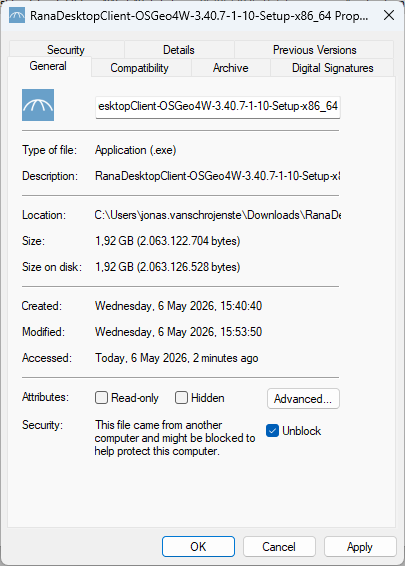
The Rana Desktop Client has a signed installer. However, Windows will automatically block the downloads via the web browser. To be able to run the installer, you need to unblock the installer file. Do this by right-clicking on the installer file, and choose ‘Properties’. In the tab ‘General’, check the box ‘Unblock’ at the bottom of the window, and click ‘Apply’. You can now run the installer.
Rana Desktop Client (first use)
When you start the Rana Desktop Client for the first time, you might want to change the default locations where Rana stores its local data. You can find these under plugins –> Rana –> settings
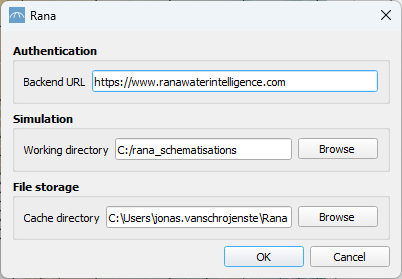
Simulation Working directory to store schematisations and simulation results. It is strongly recommended to use a directory on your local drive, not a shared drive.
File storage cache directory to store files that are downloaded from Rana. It is strongly recommended to use a directory on your local drive, not a shared drive.
Note
If you have never used the QGIS Password Manager before, you will be asked to set a master password for the QGIS Password Manager. Fill in a password and make sure you remember it. Check the box ‘Store/update the master password in your Password Manager’ so that you do not have to fill in the master password every time you start up QGIS.
You can now use all online Rana functionalities of the Rana Desktop Client. When logging in is required an internet browser will pop up in which you will be asked to enter your username and password. After succesfull authentication you can close this browser tab.
Note
You can install the Rana Desktop Client for all users if you run the installer as administrator.
Changing organisations in the Rana Desktop Client
To switch organisations in the Rana Desktop Client, go to the menu toolbar and follow the steps below
Plugins
Rana
Switch Organisation
If the ‘Switch organisation’ option is not visible it means you are enrolled in only one organisation.
Updating the Rana Desktop Client
The Rana Desktop Client consists of two parts: QGIS and Rana plugins. Each of these components has to be updated in a different way. The Rana Desktop Client is based on the long-term release (LTR) version of QGIS. The LTR is updated annually, in March. It is recommended to re-install the Rana Desktop Client every year at the end of March.
The Rana plugins can be updated in the following way:
Start the Rana Desktop Client
If any schematisation is loaded, remove them before proceeding
In the main menu click Plugins > Manage and Install plugins
At the left side, click Installed
Plugins that can be updated are shown in bold
Note
If you update, always update all Rana plugins that have updates available at the same time.
Click the plugin name. At the bottom right, click Upgrade plugin
If you are asked to install or update the Nelen & Schuurmans Dependency Loader, please do so.
Updating the Nelen & Schuurmans Dependency Loader requires a restart of the Rana Desktop Client. Do this when prompted, and also when you get a Python error during installation.
Advanced: separate installation of QGIS and Rana plugins
You can also install QGIS separately with the appropriate plugins. This is not recommended. Do this only if you have specific reasons for it, and you know what you are doing. Do the following:
QGIS Standalone Installer (Long term release). Get QGIS .
After the installation of QGIS, set the interface language and locale to American English. This makes it easier to understand the instructions in this documentation. Some locales do not support scientific notations of numbers, these are required for very small numbers (e.g. 1e-09).
Go to Settings > Options > General
Tick the box ‘Override System Locale’
For User Interface Translation, choose ‘American English’
For Locale, choose ‘English United Kingdom (en_GB)’
Restart QGIS
- Add the Rana plugin repository
In the main menu click Plugins > Manage and Install plugins > Settings
In the section Plugin repositories, click Add
As details, fill in ‘Rana’ as Name, and ‘https://plugins.ranawaterintelligence.com/plugins.xml’ as URL
Install the Rana plugins: in the tab All, install the Rana plugins. Restart QGIS when prompted.
Enable project’s embedded Python code: Make sure that this is set to Always in Settings > Options > General > Project files.
Information for system administrators
General information
All applications make use of https traffic over port 443 with public signed SSL/TLS certificates. If certificate errors show, please check any security software. One way of testing this is by visiting https://api.3di.live/v3.0/ in a browser and check the certificate. If it is issued by R3, this is the certificate configured by us. Any other name will point towards the security software in use.
Rana Desktop Client
The Rana Desktop Client is a customized version of QGIS, shipped with several pre-installed plugins and settings, see Technical setup. Its Rana plugins are maintained by Nelen & Schuurmans. QGIS itself and the other pre-installed plugins are not made / maintained by Nelen & Schuurmans.
Install instructions for the Rana Desktop Client can be found in Installing the Rana Desktop Client.
Because the Rana Desktop Client is a customized QGIS, we refer to the QGIS documentation when you run into any issues that are not specifically related to the Rana plugins:
QGIS User Manual: https://docs.qgis.org/latest/en/docs/user_manual/
Installation section in QGIS User Manual: https://docs.qgis.org/latest/en/docs/user_manual/introduction/getting_started.html#installing-qgis
URLs accessed by Rana Desktop Client
Make sure the Rana Desktop Client is allowed to communicate with following URLs:
Hydrodynamic calculation core API: https://hcc-api.ranawaterintelligence.com/ (each time a simulation is started from the Rana Desktop Client)