HCC Management: overview
To use HCC Management, open your browser and go to https://www.ranawaterintelligence.com/hcc-management and log in with your username and password. If you do not have a Rana account yet, please contact the Service desk.
After logging in on HCC Management, there are several possibilities:
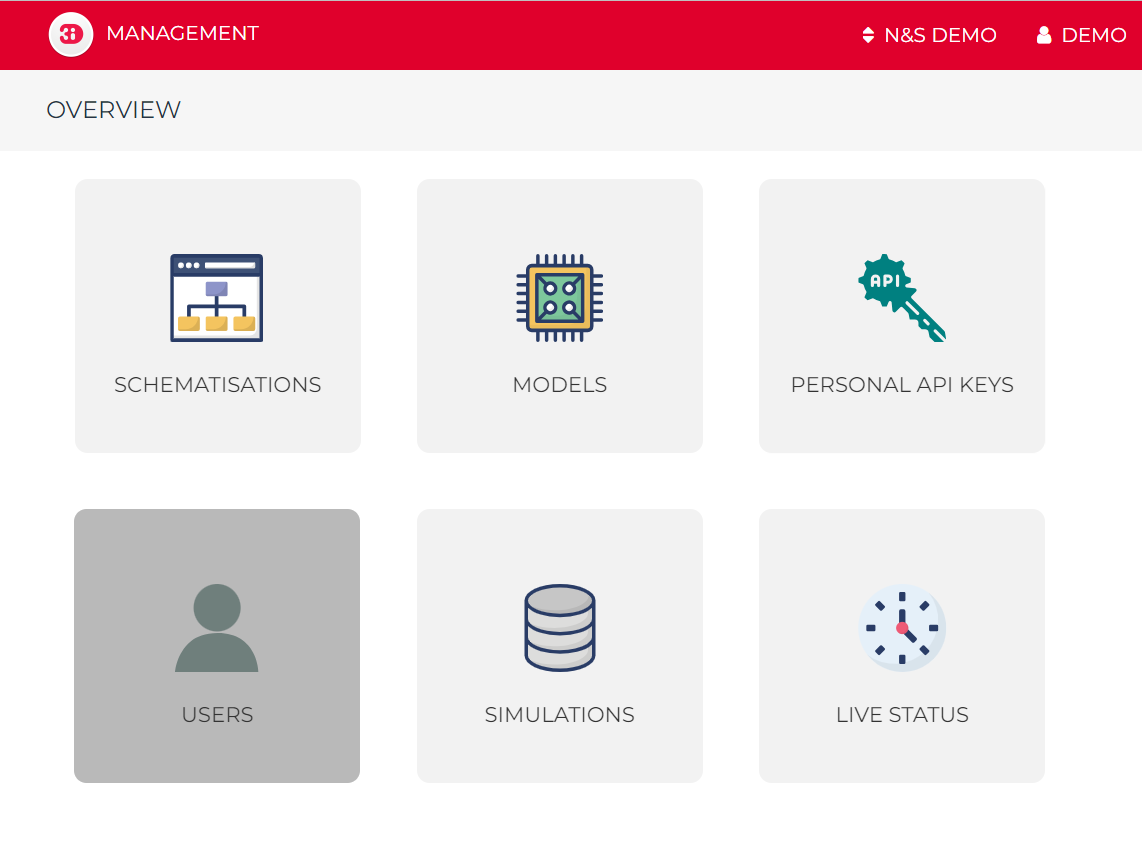
Fig. 28 The homepage of HCC Management.
In the top right, you can change organisations if you have access to multiple organisations. You can log out by clicking <your user name> > Logout in the top right.
Schematisations list
If you click the Schematisations tile in the overview, you will see a list of all schematisations within your organization. This list of schematisations can be exported to an Excel file.
You can find a specific schematisation by searching its Name, Tag, or Creator using the search bar. Once you locate the desired schematisation, you can click on its name to open the detailed view.
Schematisation detail page
The schematisation detail page consists of the following sections:
Schematisation
Revision
Rana model of this revision
Predefined simulation data (if applicable)
Schematisation
Describes the schematisation. In this section you can change the properties of the schematisation, such as the name, description, and tags. You can also transfer the schematisation to another organisation or delete the schematisation.
Revision
This section gives information on the selected revision. To view the properties of another revision of this schematisation, click Choose other revision. In this section you can download the SQLite file and rasters for this revision.
Rana Model of this revision
If a Rana Model has been generated for this revision, this section shows the properties of the Rana Model, such as model name, model size (nodes and line count), extent and location,
(Re-)generate Rana Model
Under the heading Re-generate, you can see if the Rana Model is still up to date, i.e. if it has been generated with the most recent Rana hydrodynamic computational core version. If it says here that “The model is not up to date”, you may want to re-generate the Rana Model. In most cases, this will not be necessary, but if there are any problems with this Rana Model, please re-generate the Rana model to see if this solves the issues.
To re-generate the Rana model, click Re-generate this Rana model.
Simulation templates
This table gives an overview of the simulation templates that are available for this Rana model.
Predefined simulation data (if applicable)
This section shows initial (ground)water level rasters and saved states that are available for the selected Rana model.
Models
When you click the Models tile in the overview, you will be presented with a list of all models associated with your organization.
These models can be visualized on the map within the map view. Furthermore, the list of models can be exported to an Excel file, which can prove useful if you intend to manage your Rana models more efficiently.”
Simulations
When you click the Simulations tile within the overview, you will be presented with a comprehensive list of all simulations associated with your organisation. This list provides insights into various aspects of the simulations:
Name: This denotes the name of the simulation.
Model: It reveals the name of the corresponding schematization.
User: This field displays the user responsible for initiating the simulation.
Status: Here, you can discern the simulation’s status (finished/crashed).
Type: This indicates the platform used for conducting the simulation (live/api).
Tags: Tags assigned to the simulation for categorization.
Started: The date when the simulation was initiated (dd/mm/yyyy).
Length: The duration of the simulation.
Project: The project to which the simulation is associated.
To locate a specific simulation, you can perform a search based on the Simulation name, Model name, or Username using the search bar. You also have the option to fine-tune your search using the checkboxes beneath the search bar:
Only show my own simulations: This filters the list to display simulations executed by you.
Only API simulations: This narrows down the list to show simulations executed through the Modeller Interface.
Only live site simulations: This displays simulations conducted via Rana live.
Hide crashed simulations: This excludes simulations that experienced crashes.
Once you find the desired simulation, clicking on its Name will open an overview. Within this overview, you have the following capabilities:
Download the simulation results.
Navigate to the corresponding model for which the simulation was conducted.
View the initial conditions and events of the simulation.
Save the simulation as a template for future use.
Live status
When you click on the Live status tile in the overview, you will be presented with an overview containing the following information:
The current number of licenses being utilized by your organization.
The count of simulations that are currently queued.
The number of simulations that are actively running at the moment.
Simulations that have completed while you were browsing this page.